
All your historical machine data in one place
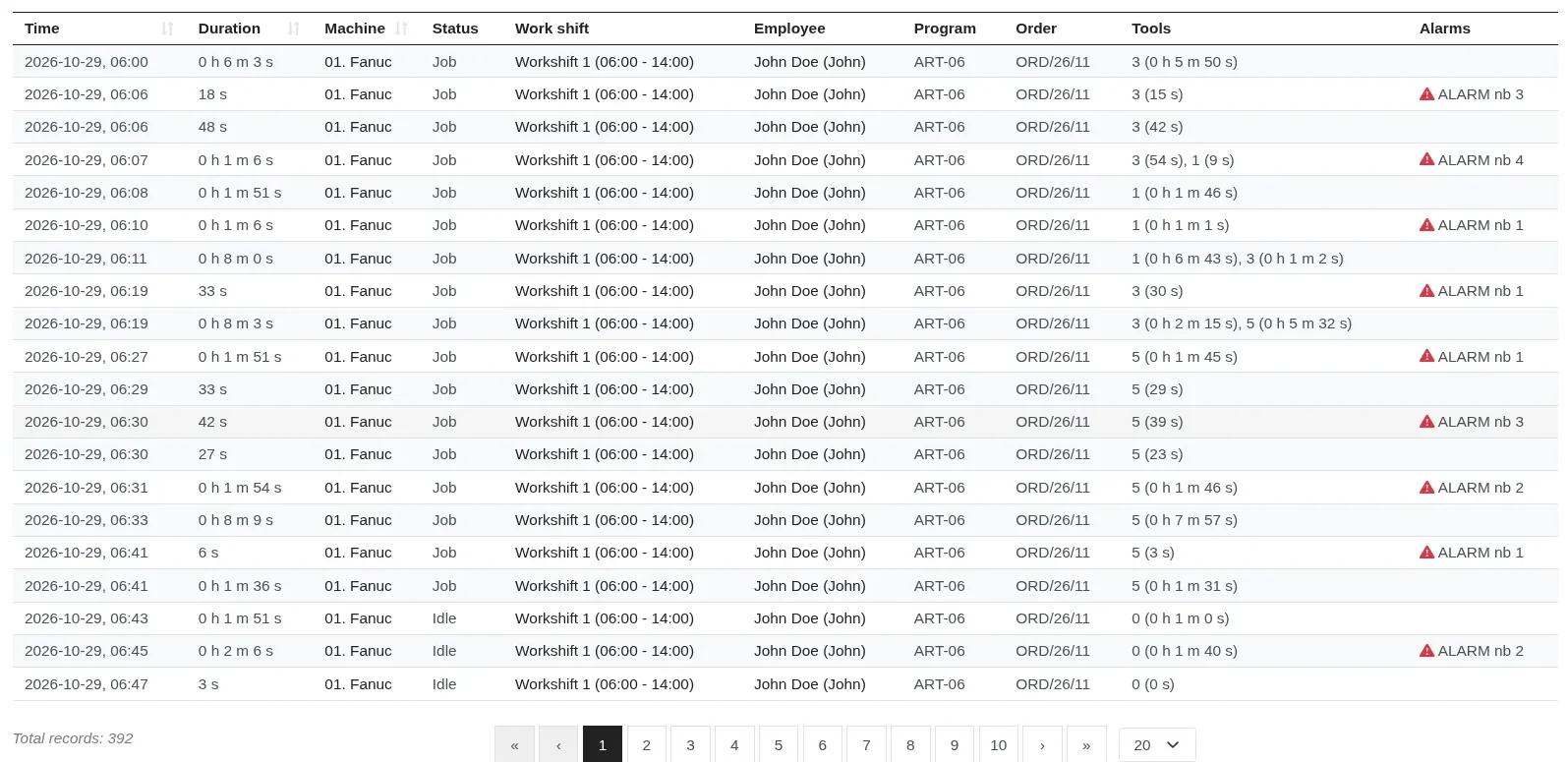
In Scout, all your historical machine data is in one table. It complements the timeline with a table view of all the historical data received from the machines.
You can show any columns (process parameters), and users can edit selected columns.
You can export the data to Excel XLSX files.
The table shows, among other things, the event time, machine status, shift, employee, program and order, and for some controls also tools and alarms.
How to browse historical machine data
You narrow down the table in the filter panel – the same one you use on the other screens in the Production section. Set, for example, the period and the machines, then click “Filter”. If you use a filter often, save it with the “Save filter” button and a shortcut to it will appear in the menu.
You can see the same data in other views too: on the timeline as a chart of states, and in job analytics as the efficiency and OEE of a selected machine, employee, shift or job. The XLSX export is useful when you want to analyse the data in your own spreadsheet.
See what this data looks like in Scout in the demo account.