
Machine timeline – an easy view of the history
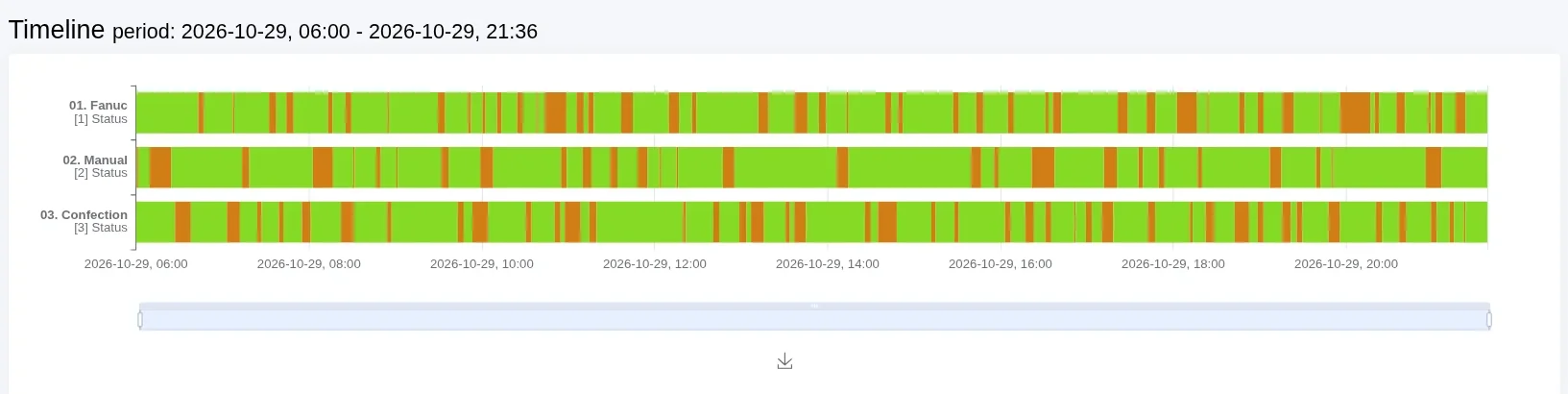
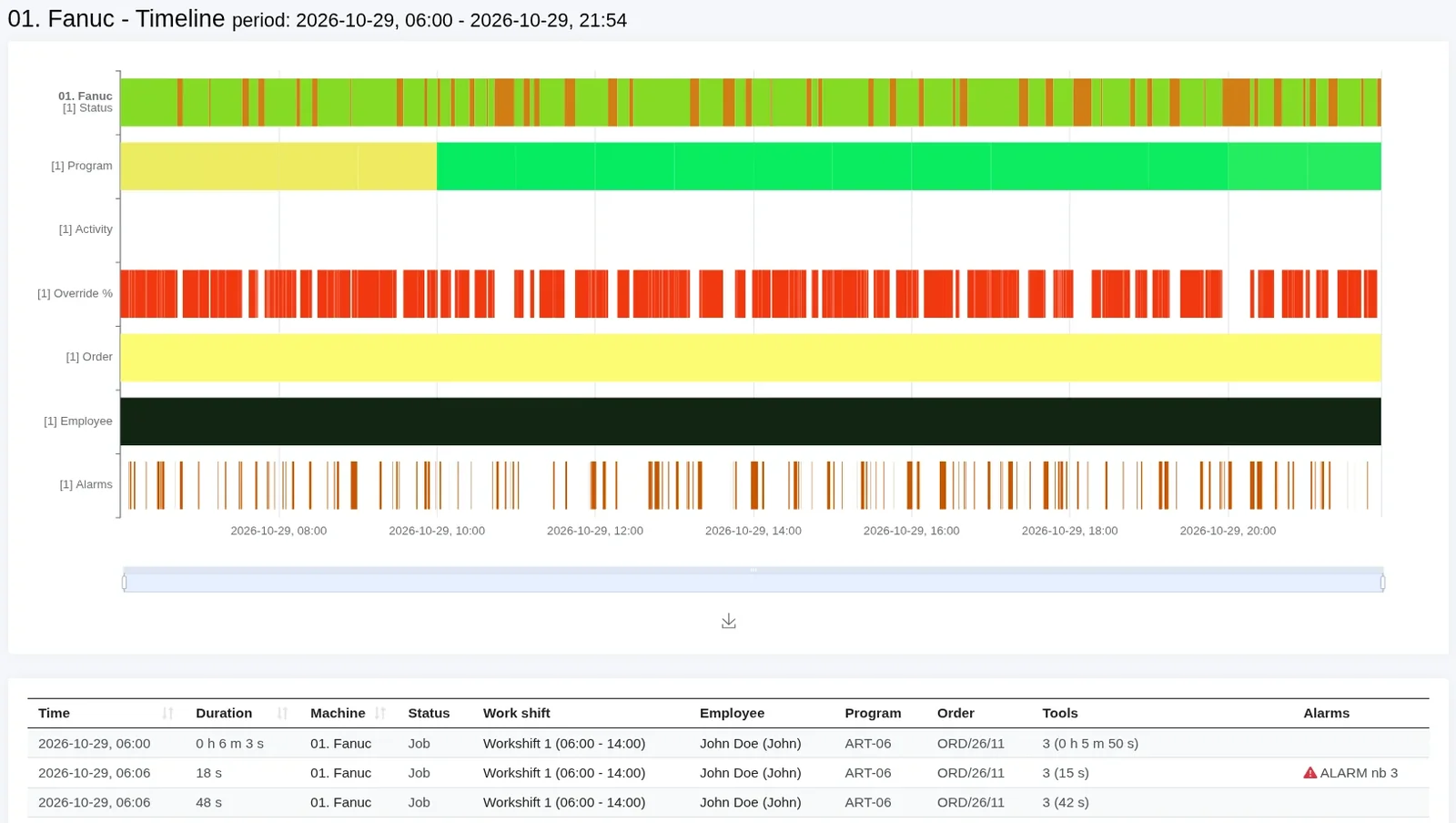
The machine timeline shows when a machine was running, stopped or had an alarm. It lets you check quickly and easily how your machines worked over a selected period. Each machine state has its own colour, so you can see at a glance when downtime happened and how long it lasted.
When you select a specific machine, you see additional details of your choice, for example:
- the program being run
- the machine operator (employee)
- the job being run
- additional data series from the control (depending on the machine’s control)
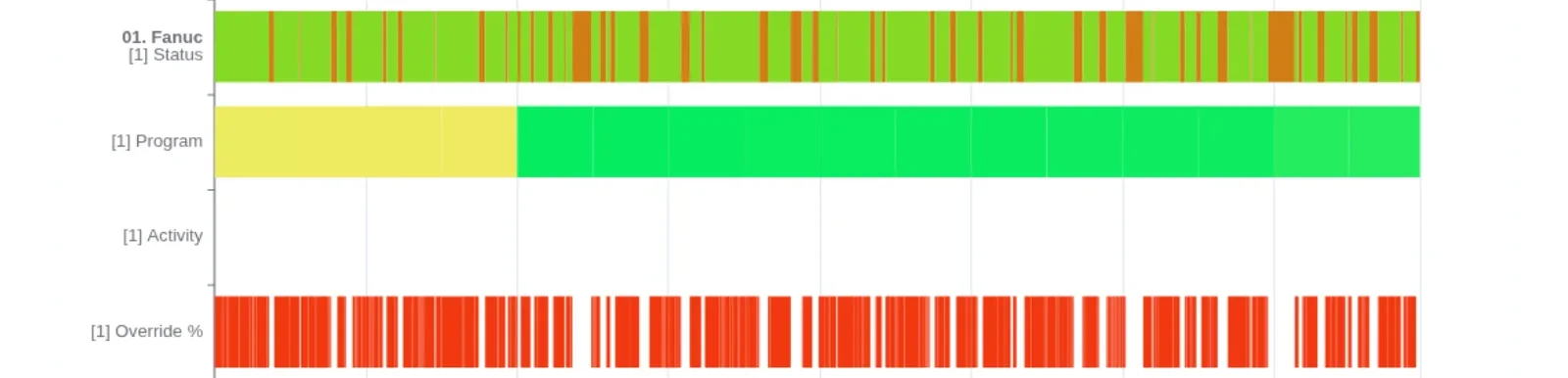
All of this helps you optimise production quickly and efficiently.
How to read the machine timeline
The machine timeline is a chart of states over time: each bar is one machine, and its colour shows the machine’s state at that moment. Hover over part of a bar to see the details, and use the mouse wheel to zoom in on a section. Below the chart is an event table with the same data.
It works best for periods of up to one day, e.g. the current or previous shift. For longer periods, use job analytics and historical data. On the timeline you can quickly check when downtime started, how long it lasted and which program was running at the time.
See what this data looks like in Scout in the demo account.